HubSpot Salesforce Sync Dropped Your Marketing Qualified Leads? Here’s How to Fix It


When your HubSpot Salesforce sync drops marketing qualified leads (MQLs), sales never sees the people your campaigns paid to win. On one hand, your marketing team reports a strong month. On the other, sales swears the pipeline is empty. Sound familiar? Here’s the problem: Both teams are actually right, because the leads are stuck somewhere between the two systems!
Most of these gaps trace back to a handoff problem hiding inside the sync settings. A filter excludes the wrong records, a required field is blank, or nobody owns a lead once it lands. A connector fix alone rarely solves it.
So where do your MQLs actually go missing? In this guide, you’ll get the setup basics in a few minutes, then the fixes that keep every MQL moving from HubSpot into a sales rep’s queue.
TL;DR
- Know what triggers a sync. Records move between HubSpot and Salesforce only when an event triggers them, and HubSpot also checks for updates every fifteen minutes.
- Check the inclusion segment first. A narrow or stale segment is the most common reason MQLs never reach Salesforce.
- Fix the handoff along with the connector. Agree on one MQL definition, assign an owner at sync, and set a follow-up window for sales.
- Test with real records and monitor weekly. Push a few test leads through every path, then track MQLs created against MQLs received.
What Is the HubSpot Salesforce Sync?
The HubSpot Salesforce sync is the native integration passing records and field values between your marketing automation platform and your customer relationship management (CRM) system. HubSpot contacts sync with Salesforce leads and contacts, HubSpot companies with accounts, and HubSpot deals with opportunities. Mapped fields decide which values travel and which system wins when both change.
For most teams, the sync’s main job is the MQL handoff. Your marketing team scores and qualifies leads in HubSpot, and sales works them in Salesforce. If you need a refresher on the stages themselves, my breakdown of MQL vs. SQL covers the difference.
Leads, Contacts, and Lifecycle Stages
Salesforce splits people into leads, which are unqualified prospects, and contacts, which belong to an account. Both sync to HubSpot’s single contact record. Lifecycle stage in HubSpot often drives when a person should appear in Salesforce at all.
Many teams follow a simple pattern. They identify MQLs with lead scoring in HubSpot, then sync only those contacts to Salesforce.
Sync Triggers and Timing
Records don’t flow on their own. A sync starts when an event triggers it, such as a form submission, a property update, a new contact, or a change in owner. On top of these sync triggers, HubSpot checks for updates every fifteen minutes.
With the basics covered, you can trace exactly where your MQLs fall out.
4 Common HubSpot Salesforce Integration Issues for MQLs
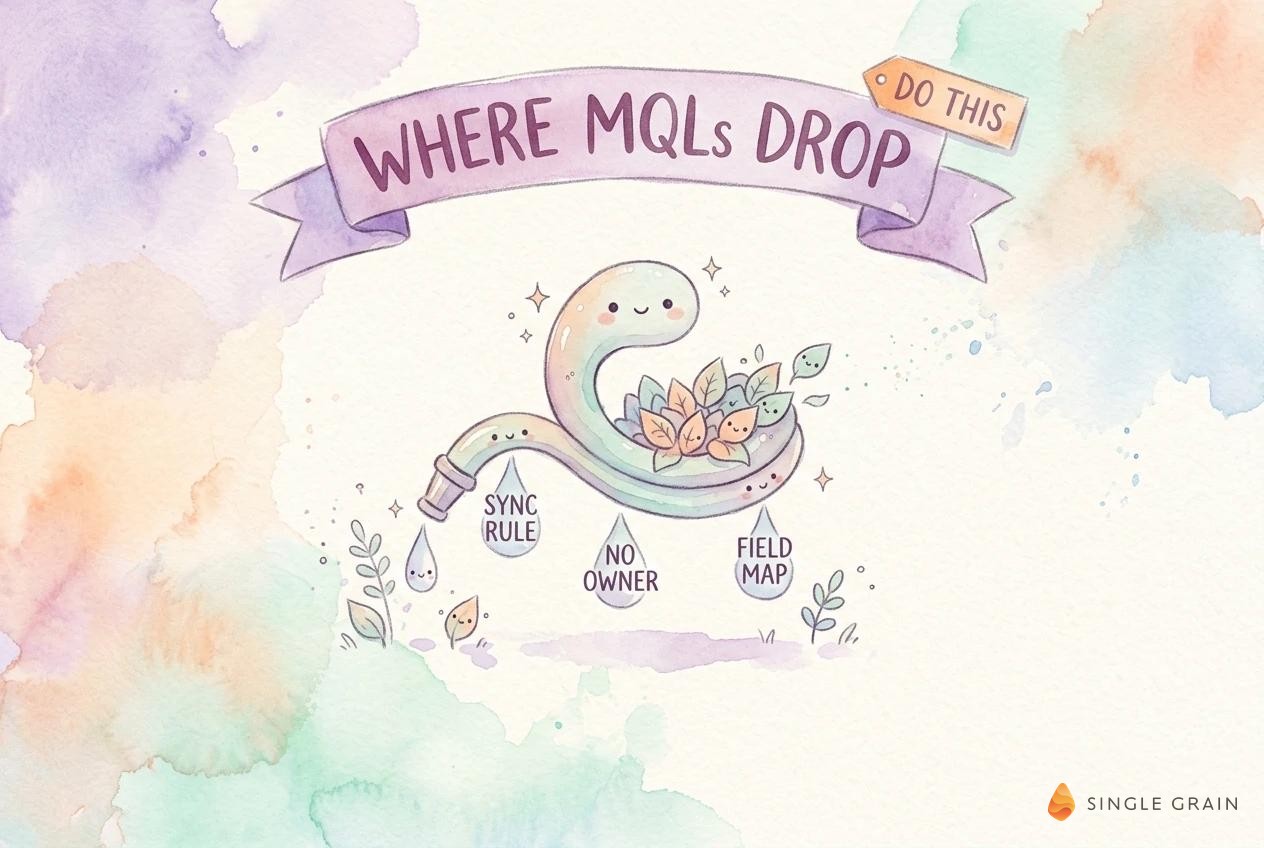
Most dropped MQLs come from a short list of causes. Work through them in order, since the first one explains the majority of cases.
1. Inclusion Segment Filters
An inclusion segment controls which HubSpot records are allowed to sync to Salesforce. Only active segments qualify, so the list updates as records meet or miss your criteria. If a new MQL never enters the segment, it never syncs.
A newly selected segment doesn’t push its members right away. Records sync only when a trigger fires, so a contact who qualified before you changed the segment may sit untouched until its next update.
2. Blank Emails and Validation Rules
Contacts without an email address won’t sync. Neither will records failing a validation rule in Salesforce, such as a required phone number or a picklist value HubSpot doesn’t send. Check the sync health and error log in HubSpot for these failures, since they often pile up quietly.
3. Field Mapping and Formula Fields
Field mapping rules decide which system wins for each property. A mapping set to always use Salesforce can overwrite a fresh MQL status from HubSpot. Updates to Salesforce formula fields also don’t trigger a sync, so a lead score calculated by formula won’t move a record by itself.
4. Duplicate Leads and Contacts
Duplicates cause a sneakier version of the same problem. When one person exists as both a Salesforce lead and a Salesforce contact, the sync can update the record nobody works. The rep sees an old lead with no new activity, while the fresh MQL data sits on a contact owned by someone else.
Clean duplicates in both systems before deeper troubleshooting. Then agree which record type sales works for new MQLs, so every handoff lands in one predictable place.
| Pro-Tip |
|---|
| Build your inclusion segment as lifecycle stage is MQL or later, or Salesforce ID is known. The second condition keeps records already in Salesforce syncing even if their stage changes. |
Clean settings get MQLs into Salesforce. The handoff decides whether anyone works them.
How to Fix the MQL Handoff First
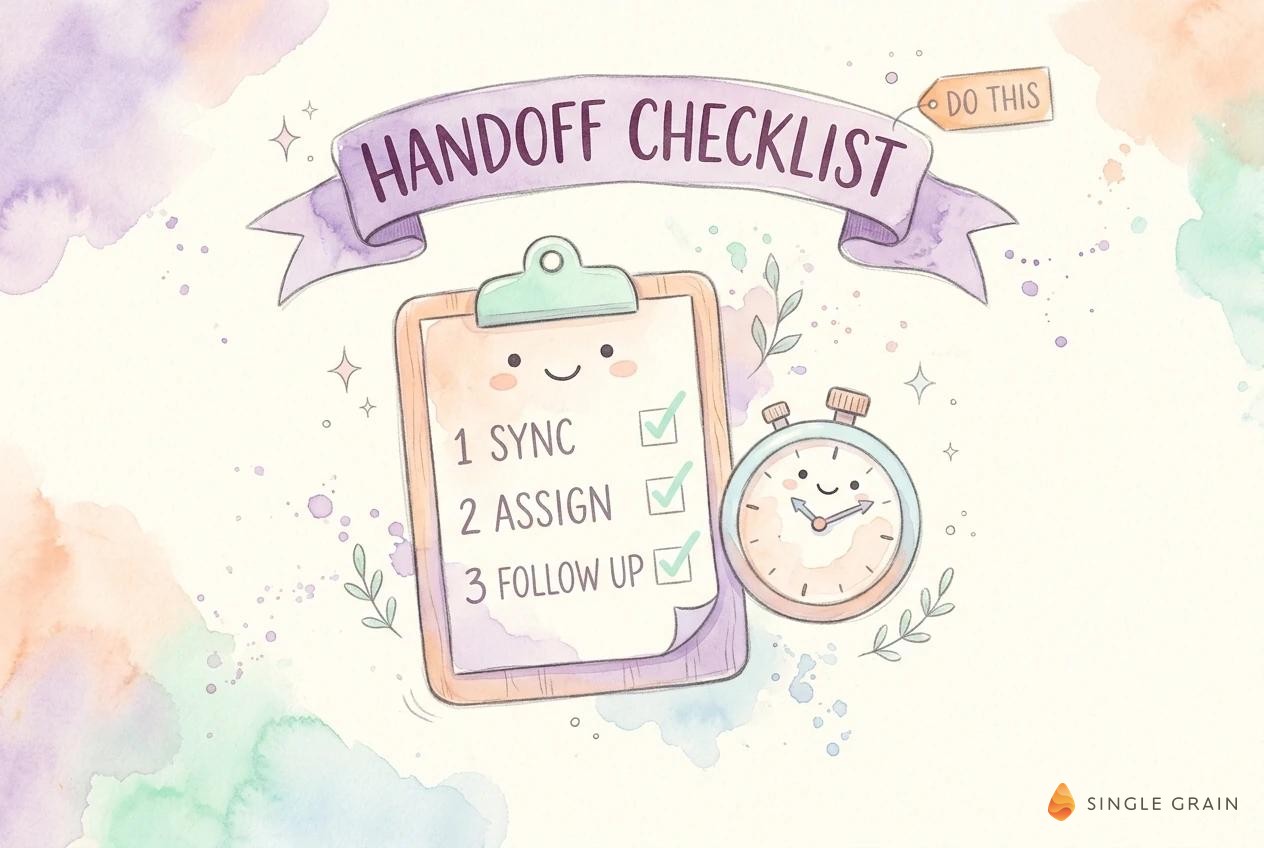
A record landing in Salesforce is only halfway there. The MQL handoff finishes when a rep sees the lead, knows why it qualified, and reaches out. Three fixes close most handoff gaps.
One Shared MQL Definition
Both teams need the same definition, written down. Spell out the score threshold, the fit criteria, and the actions counting toward qualification. When the definition lives in HubSpot lead scoring and matches what sales expects, fewer leads get rejected on sight. My guide to lead scoring governance walks through keeping the model honest.
Lead Owner Assignment at Sync
Every MQL should have an owner the moment it syncs. Use Salesforce assignment rules or HubSpot workflows to route by territory, segment, or account owner. Unowned leads are the quietest leak in any pipeline, since they exist in the CRM and nobody is responsible for them. Intent-based lead routing takes this further by sending the hottest leads to reps first.
Context for the Rep
A rep who opens a new lead should see why it qualified within a few seconds. Map the fields carrying this story into Salesforce, such as lead score, most recent conversion, original source, and the pages or content each person viewed. HubSpot can also sync timeline activity, so the rep sees emails opened and forms filled without switching tools.
Context changes the first conversation. A rep who knows the lead downloaded a pricing guide yesterday opens with a relevant question, and the lead feels heard.
A Follow-Up Window for Sales
Agree on how fast sales responds to a new MQL, often called a service-level agreement (SLA). Track the time from sync to first activity, and alert the owner’s manager when a lead sits too long. The window you choose depends on your sales cycle, so pick one both teams will actually hold.
Account-based teams need the same discipline at the account level. My guide to account-based marketing (ABM) account handoff covers how to pass whole accounts to sales without losing context.
How to Test the Sync With Real Records
Settings look fine on paper until a real lead hits them. Run a short test every time you change the inclusion segment, mappings, or assignment rules.
Use these steps in order:
- Create test contacts. Make three or four test records with real-looking data, each built to qualify through a different path.
- Push them to MQL. Trigger each one with the form, score, or workflow you use in production.
- Watch them land. Confirm each record appears in Salesforce within about fifteen minutes with the right owner and fields.
- Check the sync errors. Review the HubSpot sync health view for any failures tied to your test records.
- Delete the test data. Remove the test records from both systems so they don’t skew reporting.
A clean test gives you a baseline. Weekly monitoring tells you when the baseline breaks.
Watch the Marketing to Sales Handoff Every Week
A weekly check catches dropped MQLs before they turn into a pipeline argument. Compare the number of MQLs created in HubSpot with the number of matching records in Salesforce. Any gap points to a sync or segment problem.
Metrics Worth Tracking
Keep the report short:
- MQLs created and received. Count both sides and investigate any mismatch.
- Time to first touch. Median time from sync to a rep’s first activity.
- Rejection rate. Share of MQLs sales disqualifies, which flags a definition problem.
Review the report with one person from each team. A shared fifteen-minute review keeps both sides honest and turns a blame conversation into a fix list.
A revenue operations (RevOps) tool stack can automate this report. An agent can do it too, which is where tools like an agentic CRM start to help.
Keep Every MQL Moving to Sales
A healthy HubSpot Salesforce sync starts with the handoff rules behind it. Check your inclusion segment, clear validation errors, assign an owner at sync, and hold sales to a follow-up window. Then test with real records and watch the numbers every week.
If you want help aligning marketing and sales or building a funnel where every lead reaches the right rep, the Single Grain team can help through our marketing funnel services and marketing consulting services.
Frequently Asked Questions About the HubSpot Salesforce Sync
-
Why are my MQLs not syncing from HubSpot to Salesforce?
Start with your inclusion segment. If a new marketing qualified lead (MQL) never enters the active segment, it never syncs. Then check for missing email addresses, Salesforce validation rule errors, and field mappings set to always use Salesforce values.
-
How often does HubSpot sync with Salesforce?
Records sync when an event triggers them, such as a form submission, a property update, or an owner change. HubSpot also checks for updates every fifteen minutes and syncs any records needing it.
-
What is a HubSpot Salesforce inclusion segment?
An inclusion segment is an active HubSpot segment controlling which records may sync to Salesforce. Many teams set it to lifecycle stage MQL or later, or Salesforce ID is known, so only qualified leads reach sales.
-
Do Salesforce formula fields trigger a HubSpot sync?
No. Updates to a Salesforce formula field don’t trigger a sync on their own. Updating a mapped field used inside the formula does trigger one.
-
How do I fix the marketing to sales handoff?
Agree on one written MQL definition, assign an owner the moment a lead syncs, give reps context on why the lead qualified, and set a follow-up window. Track MQLs created against MQLs received every week. For definitions, see MQL vs. SQL.