Slack AI Agent: 4 Clear Rules on How to Set It Up


Teamily AI just put agents inside group chats as full team members, which means every Slack AI agent on your team now needs house rules. Agents carry names like Nora, Maya, and Leo. They read the same files and screenshots as the people in the chat. I love where this is going, because my AI native company already works in this way!
If you’re about to add an agent to a shared marketing channel, you have a choice to make today. You can write the rules first, or you can clean up after the bot answers a client with a half-finished draft. (The second option costs a lot more.)
My team already works with bots in Slack every day, so this news felt close to home. Keep reading for the four rules I’d set before any agent joins a shared channel: who can call it, what it can see, when it speaks up, and who owns it.
TL;DR
- Decide who can call the bot. Limit installs and triggers to the people and channels where the agent has a clear job.
- Scope what the bot can see. Add it only to the channels it needs, and keep client files and private threads out of reach.
- Set the bot’s speaking rules. Start with replies only when tagged, and use draft-first mode anywhere a client might read the answer.
- Give every agent a human owner. One named person reviews its output, updates its rules, and can switch it off.
What Is a Slack AI Agent?
A Slack AI agent is an artificial intelligence (AI) app working inside your Slack workspace. People mention it, assign it tasks, or trigger it with a command, and it replies in the same channel or thread. Some agents only answer questions, while others pull data, write drafts, or kick off work in other tools.
Shared channels change the job. In a direct message, an agent answers one person. In a group channel, it answers to a whole team, sees a stream of messages from many people, and its replies land in front of everyone at once.
How Teamily Puts Agents in Group Chats
Teamily AI describes itself as an AI-native messenger where humans and multiple AI agents work in the same group chat. The company was co-founded by Aiden Chaoyang He, its chief executive, and Salman Avestimehr, a Dean’s Professor at the University of Southern California. Its public launch post says agents chat and build alongside users in private and group conversations, using one connected context across conversations, documents, and apps.
The idea is simple and powerful. Everyone in the chat, human or agent, works from the same files and history, so nobody has to recap.
Shared Channels and Private Messages
The same agent behaves very differently depending on where it lives:
- Private messages. One person controls the prompt, sees the answer, and decides what to do with it.
- Shared channels. Many people can trigger the agent, many people read its replies, and the agent may see messages meant for others.
Shared channels are where the rules count. The first rule covers who gets to call the agent at all.
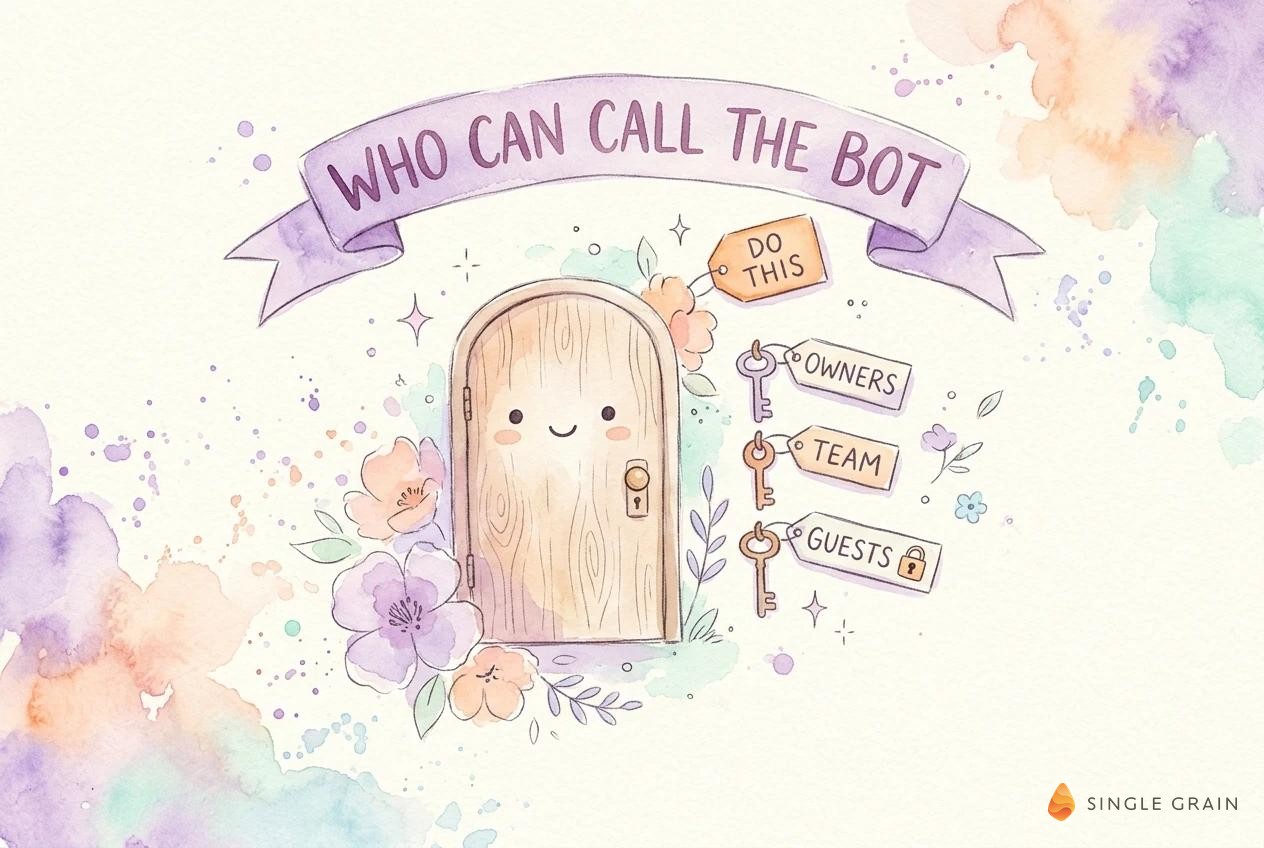
Rule 1: Decide Who Can Call the Bot
By default, Slack lets members install apps without approval from a Workspace Owner. Owners can turn on app approval for the workspace, which lets them pre-approve or restrict apps. When an owner approves an app, they approve the scopes it will use to take actions in the workspace.
Turn this on before your team starts adding agents. Otherwise, the first agent in a client channel might be one somebody installed for a weekend experiment.
Install Rights and Approved Apps
Pick a short list of people who can request and approve agents. For most marketing teams, the list covers a marketing operations lead, an IT owner, and one senior marketer. Each approval should note the agent’s job, its channels, and its owner.
Mentions, Commands, and Triggers
Decide how people trigger the agent. A mention in a thread keeps the call visible and tied to context. Slash commands work well for repeatable jobs, like pulling a weekly report. Scheduled posts suit digests and alerts, as long as the channel expects them.
| Pro-Tip |
|---|
| Give each agent one trigger style per channel. A bot answering mentions in one channel and running on a schedule in another is far easier to audit than a bot doing both everywhere. |
Once you know who can call the agent, the next question is what it sees once it joins a channel.
Rule 2: Scope the Bot’s Channel Access
An agent in Slack sees what its scopes and channel memberships allow. A scope like channels:history lets an app read messages in public channels where it’s a member. The fewer channels an agent joins, the less it can read, quote, or leak.
Channel Membership Limits
Add the agent only to channels where it has a job. A content agent belongs in the content channel. It has no reason to sit in the finance channel, the leadership channel, or a client channel it never serves.
Review memberships every month. Agents tend to pile up in channels after a test, a launch, or a one-time request.
Files, Screenshots, and Client Data
Group chat agents are exciting because they can read the same files and screenshots as people. In a marketing team, those files might include client contracts, unreleased creative, or customer lists. Keep sensitive material in channels the agent can’t join, and tell your team which channels are agent-free.
The security side deserves its own plan. My post on AI agent security covers how agents can expose data, and the same risks grow when an agent sits in a busy shared channel.
| Pay Attention |
|---|
| An agent that can read a channel can usually quote it. Assume anything in an agent’s channels might show up in its replies to anyone in those channels. |
With access scoped, the last behavior to set is when the agent talks.
Rule 3: Set the Bot’s Speaking Rules
A chatty agent in a shared channel gets muted fast. People stop reading its posts, and the useful replies get buried with the noise. Clear speaking rules keep the agent welcome.
Replies When Tagged
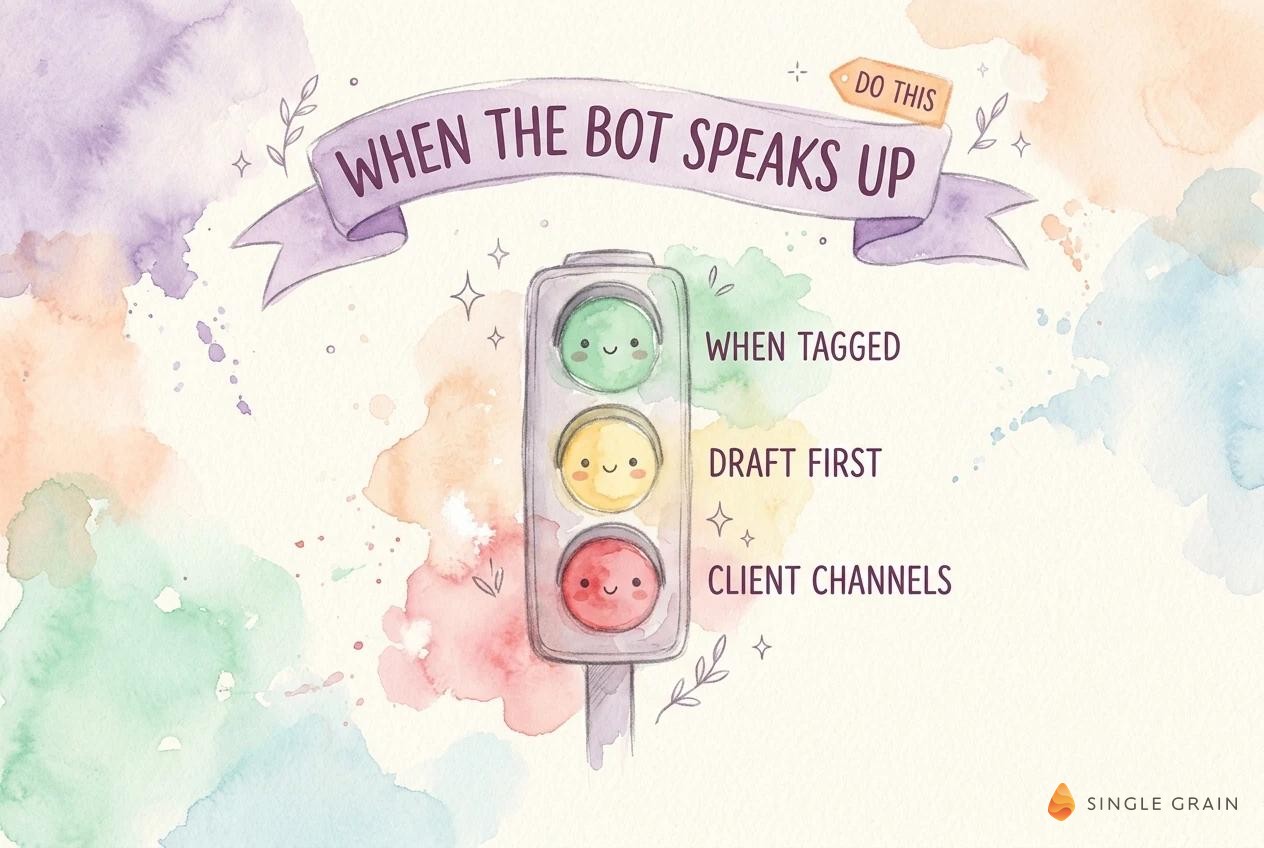
Start every new agent on replies only when someone tags it. This rule gives people control over when the agent joins a conversation, and it keeps answers in the thread where the question started. After a few weeks of good behavior, you can allow scheduled posts or proactive alerts in specific channels.
Draft-First Mode for Client Channels
Anywhere a client might read a reply, the agent should post drafts for a human to approve. My AI agent guardrails post explains how I split agents into read, draft, and send permissions. In a shared Slack channel, draft-first is the safe default for any message with a client’s name on it.
Speaking rules only hold when somebody watches the agent. Every agent needs an owner.
Rule 4: Assign a Human Owner for Every Agent
Each agent gets one named owner. The owner reviews its output, updates its instructions, answers questions about it, and can turn it off. Without an owner, nobody notices when an agent starts drifting.
Owners also keep the agent’s rules current. My team writes corrections as hard rules, which is the approach behind AI agent memory that sticks. A short weekly review, like the one in my guide to monitoring AI agents, catches problems before a client does.
Owners help with a quieter risk too. People tend to trust an agent’s answer once it sounds confident, which is the automation bias every team should keep in check.
A Starter Policy for AI Agents in Slack
You can write a usable policy in one meeting. Keep it to a single page, pin it in a channel everyone can see, and update it each time you add an agent.
AI Agent Governance Checklist
Cover these six points in order:
- Approval. Workspace app approval is on, and a named group approves every new agent.
- Job. Each agent has a one-line job description and a list of allowed channels.
- Triggers. Each agent uses one trigger style per channel, starting with replies when tagged.
- Access. Agents stay out of finance, leadership, and client channels unless their job requires it.
- Drafts. Any reply a client might read goes out as a draft for human approval.
- Owner. One person owns each agent, reviews it weekly, and can switch it off.
This checklist works for one agent or twenty. Teams running AI agents daily tend to grow from a single bot to a whole crew, so set the policy while the crew is small.
Write Your Channel Rules Before the Next Agent Invite
Teamily’s take on agents as named members of a group chat is a preview of where Slack workspaces are heading. Every Slack AI agent you add will see more, say more, and do more over time. Decide who can call it, what it can see, when it speaks up, and who owns it, and your team gets the upside without the cleanup.
If you want help putting AI agents to work across your marketing, the Single Grain team can help through our marketing consulting services and content marketing services.
Frequently Asked Questions About Slack AI Agents
-
What is a Slack AI agent?
A Slack AI agent is an artificial intelligence app working inside your Slack workspace. People mention it, assign it tasks, or trigger it with a command, and it replies in the channel or thread. Some agents answer questions, while others pull data, write drafts, or start work in other tools.
-
Who should be allowed to add AI agents to Slack?
Turn on Slack app approval so Workspace Owners can pre-approve or restrict apps. Then name a small group, such as a marketing operations lead, an IT owner, and one senior marketer, to approve each new agent along with its job, channels, and owner.
-
What can an AI agent see in a Slack channel?
An agent sees what its scopes and channel memberships allow. A read scope on public channels lets it read messages in channels where it’s a member, so add agents only to channels where they have a job and keep sensitive files elsewhere.
-
Should AI agents reply to clients in shared Slack channels?
Start with draft-first mode. The agent posts a draft, and a person approves it before a client sees it. See AI agent guardrails for how to split read, draft, and send permissions.
-
What is Teamily AI?
Teamily AI is an AI-native messenger where people and multiple AI agents work in the same group chat. It was co-founded by Aiden Chaoyang He and Salman Avestimehr.