Site Migration Issues: How to Do a Tracking Check on Lead Dips


Are you PANICKING right now because your redesigned site just went live, and within days your lead report dropped with NO explanation for where the inquiries went? What the heck is going on?! Before you go into a full blown freak out over site migration issues, all you have to do is a site migration tracking check.
A site migration tracking check tells you whether you lost buyers or only lost the measurement.
So, did the new site lose inquiries, lose measurement, or lose the handoff to sales? If you want proof before you change a campaign budget, then you’ll definitely want to stick around to learn how to do this.
Your job here is to trace a post-launch lead dip from the submission record through analytics into the CRM before deciding what to repair. This guide goes over site migration tracking and covers the evidence to collect, how to interpret disagreements, and when a budget decision has enough support.
TL;DR
- Agree on what counts as a lead. A submitted form, a new contact, and a qualified opportunity measure different stages.
- Follow an inquiry across systems. Compare submission records with event evidence and CRM activity using a common time window.
- Test the live path after launch. A successful preview or staging test doesn’t prove the published site works.
- Separate collection failures from demand changes. Repair a broken handoff promptly, then evaluate traffic and buyer behavior with reliable records.
TABLE OF CONTENTS:
- Why Lead Numbers Drop After a Site Migration
- Compare Lead Records Before You Compare Reports
- Follow a Lead Into Sales, Using My Actual Workflows
- Check Tags and Consent on the Published Site
- Test Forms and Conversion Events After Launch
- Confirm CRM Delivery and Routing
- When the Lead Dip Survives Your Tracking Checks
- Close the Investigation With a Repeatable Launch Check
Why Lead Numbers Drop After a Site Migration
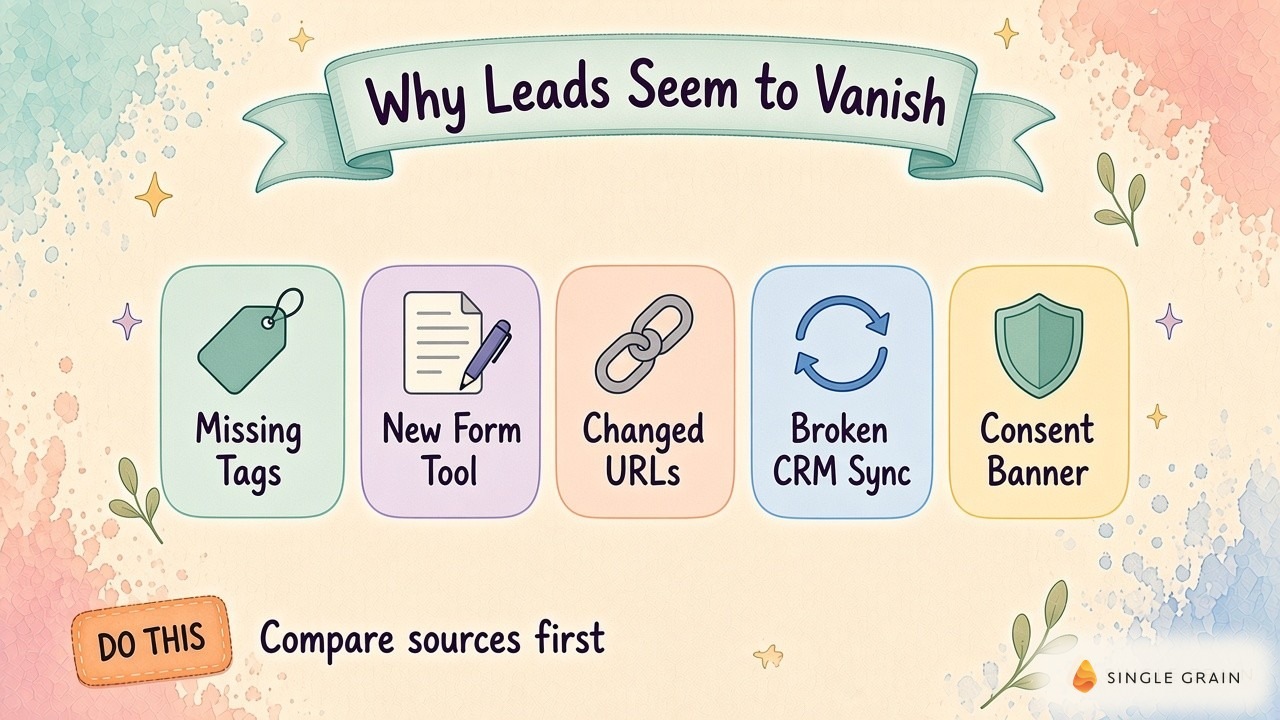
Site migration issues arise because a site migration can change the form, its success message, and the script listening for a submission. On one hand, your analytics event may still depend on the old thank-you URL. Meanwhile, the new form might save an inquiry successfully while its CRM integration rejects a required field.
These failures have different consequences. Missing measurement leaves you with an incomplete report, and a failed submission can cost you the inquiry itself. Not to mention, a CRM routing failure can leave a saved inquiry waiting outside the salesperson’s view.
Here’s what I would do: I’d start a shared investigation sheet with columns for landing page, submission time, form record ID, analytics event, CRM record ID, and owner. Add a separate column for the observed failure and a link to its evidence.
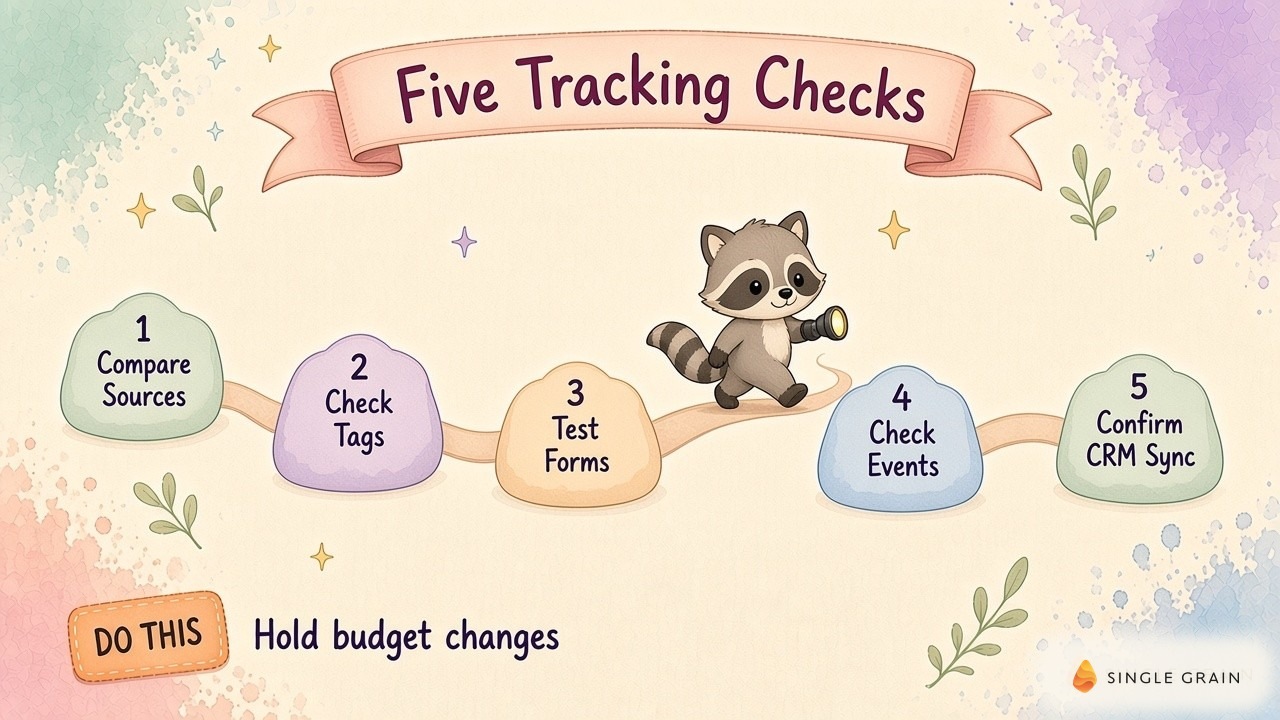
Resist assigning a cause from a single chart. If every system shows fewer leads, you still need to check whether the form stopped accepting submissions. Start by making the counts comparable.
Compare Lead Records Before You Compare Reports
Next, choose the same reporting time zone and comparable weekdays before and after launch. Mark the deployment time separately so a partial launch day doesn’t hide inside a daily total. Record campaign pauses, spend changes, and any deliberate change in qualification.
Your form tool may count repeat submissions from an existing customer while a CRM report counts only newly created contacts. Ad platforms can also attribute a conversion to an earlier interaction. Equal totals across these reports aren’t a useful pass condition until you’ve reconciled their definitions.
Define the Lead Unit
For this investigation, use a valid inquiry submitted through a specific form as the starting unit. Keep spam, internal tests, and repeat submissions visible in separate categories so you can explain exclusions. Preserve the original export before applying filters.
Next, reconcile a saved inquiry with its CRM activity. A repeat submission might update an existing contact without producing a new contact row. Search by the submitted address and inspect activity around the submission time before declaring the record missing.
Read the Disagreement
If form records stay stable while analytics events fall, investigate event collection and reporting definitions. If submissions exist but CRM activity is absent, investigate delivery and record matching. If both decline, test form completion before concluding buyer demand fell.
Write the current hypothesis beside the evidence it still needs. “Event collection may have broken on the new contact template” is actionable because you can test the template. “Marketing is down” leaves everyone arguing over different reports.
This reconciliation gives the technical check a specific target. You can follow a known submission instead of clicking around until a dashboard looks healthier.
Follow a Lead Into Sales, Using My Actual Workflows
Media OS, my team’s paid media bot, put together a Meta campaign with HubSpot connected. The campaign sent prospects toward AI visibility and citation maps, and I reported sales-qualified leads.
For a migration audit, I’d use the same connection as a boundary to inspect. Can a submitted inquiry reach the CRM with the context needed for qualification? A working connection in my stack says nothing about whether yours survived the migration.

Check Call Logs and Lead Routing in HubSpot
A second example comes from my inbound lead workflow. I described checking incoming leads, sending a Slack brief, using Twilio for calls, and logging the call and transcript in HubSpot. Qualification and the sales handoff happen after the initial inquiry.
Here the HubSpot call log and transcript give you evidence beyond a form count. During an audit, inspect whether an inquiry reached the person responsible for follow-up and whether subsequent activity exists. A contact record can survive a migration while routing breaks.
Keep ownership explicit in your investigation sheet. Ask the person responsible for form delivery to verify receipt, then ask the CRM owner to verify assignment. A completed analytics event can’t substitute for either check, which brings the investigation back to the browser.
Check Tags and Consent on the Published Site
Open an affected live landing page and use Tag Manager preview mode to inspect firing order and triggers. Google’s documentation confirms the preview connects your site to Tag Assistant and shows which tags fired. Inspect the event associated with successful submission.
Preview can expose a draft container configuration, so record which container version you’re testing. Confirm the intended version is published and check the live visitor path separately. A screenshot from preview alone doesn’t show what ordinary visitors receive.
Test Every Template and Consent Choice
Check the contact template and any campaign landing page with a different layout. A tag present on the home page may be absent from a template introduced during the redesign. Save the page URL and the failed trigger condition so the developer can reproduce the issue.
Repeat the test under the consent choices your site offers. Record the choice alongside the result and preserve the site’s privacy requirements. A rejected cookie choice can explain missing measurement without pointing to a broken form.
At this point, you should know whether the browser emits the intended signal under the tested conditions. Next, verify the action behind the signal.
Test Forms and Conversion Events After Launch
Submit a clearly labeled internal test through each distinct form implementation. Use an address your team controls, avoid real customer details, and coordinate with sales so the test doesn’t trigger unwanted outreach. Record the submission time and inspect the saved form entry.
A visible success message proves only what appeared in the browser. Check for a saved entry before proceeding to the CRM. If the form tool reports an error or stores no entry, capture the failure and prioritize the collection repair.
Match Events to Successful Submission
Open GA4 DebugView with debug mode enabled for your test device. Google documents this view as a way to inspect collected events and their parameters. It also explains why privacy controls or missing analytics consent can prevent events appearing.
Compare the event name with the name your reporting setup expects. Inspect the page and form context passed with it. Use the GA4 micro-conversion tracking guide when you need to distinguish an intermediate interaction from the inquiry you actually count.
Try an invalid submission and a successful submission separately. If both produce the lead event, your signal includes failed attempts. Refresh the thank-you page as another diagnostic check, because a page-based conversion can behave differently from a submission-based event.
Preserve Source Context
Check any campaign parameters your existing implementation is designed to capture. Follow an actual campaign landing URL through to submission and compare the saved values with the CRM fields. Inspect redirects along the path if a value disappears.
If you import CRM outcomes into advertising, review the identifiers and mappings required by your configured integration. Our Google Ads conversion tracking setup guide can help frame the investigation. Avoid replacing missing source values with guesses.
| Pro-Tip |
|---|
| Keep a screenshot of the submission result beside its saved entry and CRM activity. Add the published container version to the same test record so a later deployment doesn’t erase your explanation. |
With collection verified, the remaining question is whether the inquiry lands somewhere sales can use it.
Confirm CRM Delivery and Routing
Inspect integration logs for the submission you just tested. Look for a rejected required field, authentication failure, or mapping left behind during the migration. Capture the error text and the receiving system’s record ID when available.
Check both record creation and updates to existing contacts. Confirm the intended owner receives the inquiry and can see its submission context. Inspect notification rules separately from storage, since a saved contact doesn’t prove a salesperson was alerted.
Before replaying failed deliveries, inspect how the integration handles duplicate requests. Have the CRM owner approve the recovery method and verify a recovered record before processing the remaining failures. Otherwise, a repair can leave sales sorting duplicate inquiries.
Our guide to when server-side tracking is worth the cost addresses a broader infrastructure decision. For this incident, keep the repair tied to the demonstrated failure. Once the handoff passes, you can investigate a possible decline in demand with more confidence.
When the Lead Dip Survives Your Tracking Checks
Lower valid submissions deserve a traffic and conversion-path review once collection and delivery tests pass. Compare traffic reaching the affected landing pages, then inspect form access and completion. Keep device differences visible if the new layout behaves differently on mobile.
Check Search Traffic and the Redirect Map
I used ClickFlow to measure Google Search Console performance and identify decaying content. I also described combining measurements in an internal AEO and SEO measurement bot. This gives me a separate source to inspect when organic acquisition looks weaker.
Search Console evidence can help locate a search traffic change; it can’t tell you whether an inquiry arrived. Google’s site move guidance calls for mapping old URLs to new destinations and monitoring traffic. Check affected landing pages against this map before attributing a decline to the new design.
Review the Redesigned Inquiry Path
For changes to navigation or page layout, review the website redesign guidance and inspect your actual inquiry path. Can a visitor find the contact action, complete required fields, and recover from an error? Our website lead leak audit covers related conversion checks.
Write the proposed action beside the evidence supporting it. An affected redirect needs a technical repair; a harder-to-complete form needs a usability investigation. Give each change its own validation record so the next report can distinguish the repair from unrelated campaign movement.
Close the Investigation With a Repeatable Launch Check
Close the incident when the affected path passes a live test and incoming records reconcile under the agreed definitions. Your sign-off should name the repaired failure, the evidence, and the owner who verified the result. Keep unresolved attribution gaps visible.
Before the next launch, preserve the event names, form integrations, and destination URLs your reporting depends on. Add the same submission-to-CRM test to release acceptance. Choose the monitoring window around your normal inquiry volume and reporting delays, then review it with the person making budget decisions.
Need help diagnosing a post-launch lead dip? Single Grain’s CRO team and paid advertising team can help review the path from campaign to inquiry. Contact Single Grain to discuss your site.
Frequently Asked Questions About Lead Drops After a Site Migration
-
Why did my leads drop after a website migration?
Often because tracking broke: missing tags, changed forms, new conversion URLs, or broken CRM sync. Compare data sources to confirm.
-
How do I know if a lead drop is real or a tracking issue?
Compare lead counts in your CRM, form tool, analytics, and ad platforms. If the CRM is steady but analytics dropped, tracking is the likely cause.
-
How do I test tracking after a site launch?
Use Tag Manager preview mode and GA4 DebugView, submit test entries on every form, and confirm each lead reaches your CRM with source data.
-
What should a website migration checklist include for tracking?
An inventory of tags and events, a map of old to new conversion URLs, end-to-end form tests, consent checks, and a named owner for sign-off.
-
How much does it cost to migrate a website?
It depends on site size, platform, and scope. Budget time for tracking tests alongside design, development, and SEO work.