Manage AI Agents Without Sitting at Your Desk


Can you really manage AI agents from your phone, or does every approval still wait until you’re back at a desk? Agents now run for hours on their own. People on X (formerly Twitter) spent the last two days asking why they still need a desk at all, and I’m honestly fired up about it.
If you lead a marketing team, the real question is what you can safely hand off to a phone screen. A thumbs-up on a draft is easy. A budget change made from a ski lift is a little less fun to explain on Monday.
Keep reading to see where the work actually runs, which jobs fit a phone, which ones still belong at a desk, and the five-step setup my team uses so agents keep moving while we’re out of the office.
TL;DR
- Your phone is the remote control. Agents keep running on a computer or in the cloud, and the phone sends approvals, questions, and stop orders.
- Approve, steer, and stop from mobile. Short decisions like sign-offs, briefings, and quick redirects fit a phone screen well.
- Keep heavy work at the desk. New agent setup, credential changes, and long reviews still need a full screen and a clear head.
- Set guardrails before you leave. Spend caps, send limits, and a kill switch keep agents safe when you only check in from your phone.
What It Means to Manage AI Agents From Your Phone
Managing agents from a phone means you give direction, approve work, and stop runs from a small screen while the agent does its job somewhere else. The phone holds the conversation. A laptop at home, a server, or a cloud workspace holds the actual work.
This split is the key idea behind every tool in this space. Once it clicks, you stop worrying about running heavy jobs on a phone and start thinking about which decisions you want in your pocket.
Where the Agent Actually Runs
Anthropic’s documentation for Claude Code Remote Control explains the model clearly. The session keeps running on your own machine, and the phone app or browser works as a window into it. Your computer has to stay on, and the session has to keep running.
Cloud sessions work differently. The Claude Code mobile guide says cloud sessions keep going after you close your laptop, so you can check on them or steer them from any device. Pick cloud hosting when the job should survive a closed laptop.
Tools Bringing Agents to Your Pocket
The past week brought a wave of mobile options. Anthropic refreshed the Claude app with a Code tab for starting and resuming coding sessions on iOS and Android. OpenAI brought Dot agents to Apple CarPlay for voice tasks while driving.
Open-source tools are moving too. T3 Code acts as a control plane for tools like Claude Code and Cursor, with mobile apps for iOS and Android. Personal agent teams like the ones in my OpenClaw use cases post also run on always-on machines, which makes a phone a natural spot for check-ins.
With the tools in place, the bigger shift is cultural, and X lit up about it this week.
Why the Desk Feels Optional Now
The conversation started with a simple question. Scott Stevenson, who runs contract AI company Spellbook, wondered whether he’d get more done prompting agents from the gym or a hiking trail. He called it “the great unshackling of knowledge workers.”
Replies came fast. Author Paul Millerd said he has been prompting from the gym, his bike, and hiking paths for at least three months. Indie founder Pieter Levels predicted a new nomad wave around 2028 as people prompt from everywhere.
Approvals on Your Wrist
One reply painted the clearest picture of the workflow. Filippo Pietrantonio, a founder building an AI operating system for companies, described agents working while he surfs, with approval requests landing on his watch.
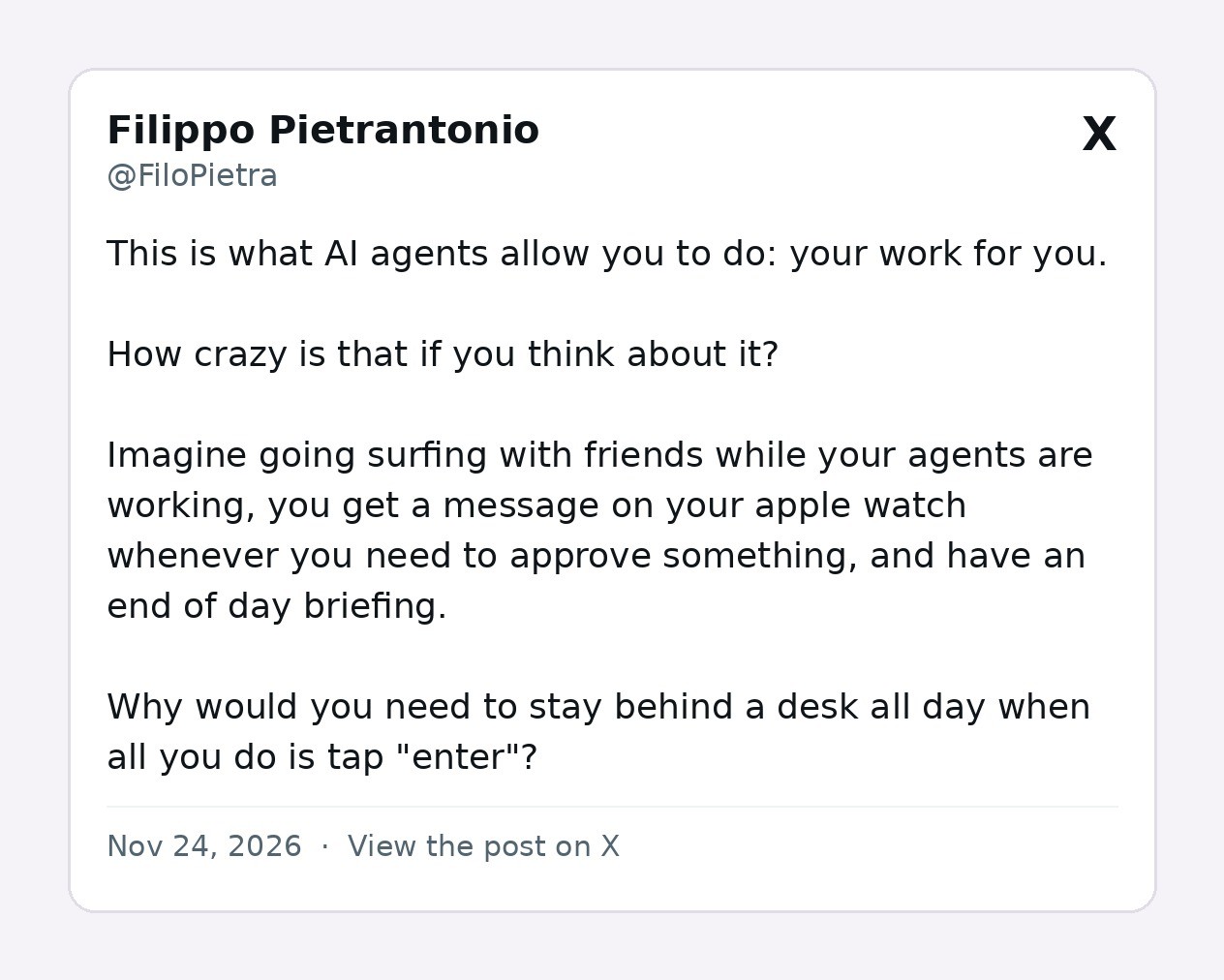
His point lands for marketers. Most of what a manager does with agents comes down to small yes or no calls, and those calls fit a watch or phone screen.
Skeptics Raise Fair Points
Not everyone is sold. Some people in the trending story point to office mandates, and others joke about highways full of camper vans. Both reactions are fair, since plenty of companies still want people in the office.
My view is practical. Mobile control removes the wait. When an agent needs a yes, it should get one in minutes, from wherever you are.
So which decisions belong on the phone? Here’s how my team splits them.
What to Handle From Your Phone
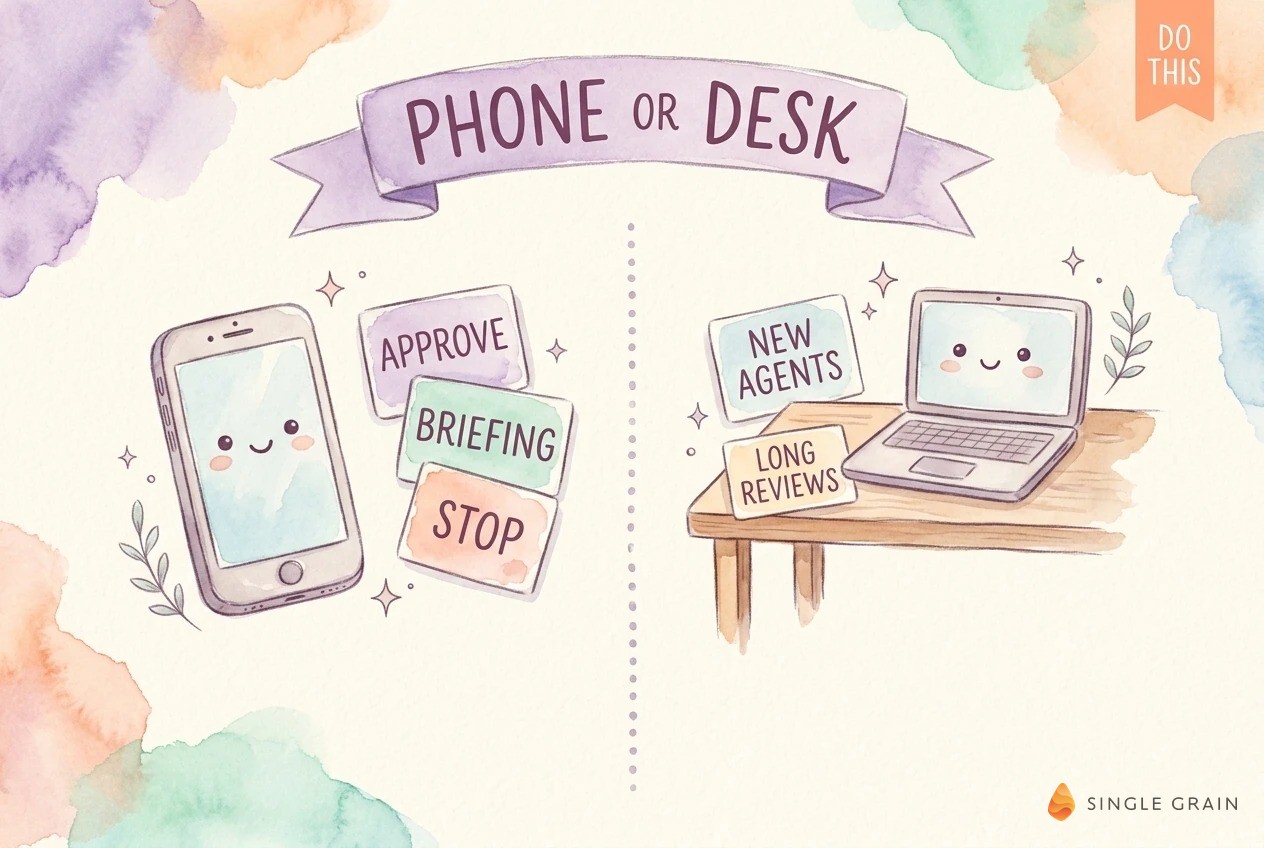
A phone works best for short decisions with clear options. Anything you can answer in under a minute, with the context on screen, is a good fit.
1. Approvals and Sign-Offs
Approvals are the biggest win. A draft email, a social post, or a landing page change can sit in a queue until someone says yes. My AI agent guardrails post explains how I split agents into read, draft, and send permissions, and the phone is where most draft approvals now happen for my team.
Send approvals to one place. Slack works well if your team already lives there, and my guide to AI agents in Slack covers the channel rules I’d set first.
2. Morning and Evening Briefings
Ask each agent for a short briefing at the start and end of the day. The briefing should list what finished, what’s blocked, and what needs a decision. You read it on your phone in two minutes and reply to anything stuck.
Scheduled jobs make briefings reliable. My post on how to put marketing agents on a real schedule walks through setting recurring runs so updates show up without a prompt.
3. Quick Redirects and Stop Orders
Sometimes an agent heads the wrong way. A quick message like “use the Q4 offer, skip the old pricing” saves a whole run. Stop orders matter even more, since a phone lets you halt a job the moment a briefing looks off.
| Pro-Tip |
|---|
| Write three canned replies for each agent, such as approve, revise with notes, and stop. Saved replies turn a phone check-in into a ten-second job. |
Short calls like these are where a phone shines. Bigger jobs still deserve a full screen.
What to Keep at the Desk
Some work needs room to think. Setting up a new agent, connecting it to tools, and writing its first rules all take focus and a keyboard.
1. New Agents and Credentials
Leave agent setup, login changes, and new tool connections for the desk. A mistake here can expose client data or give an agent more access than it needs. Review those changes on a big screen, with time to double-check each permission.
2. Long Reviews and Client Launches
Long documents, campaign launches, and anything with a client’s name on it deserve a careful read. A phone screen hides detail, so typos and wrong numbers slip through. Save those reviews for a laptop, even if the agent finished the draft hours earlier.
With the split clear, setup comes next.
How to Set Up Mobile Control in Five Steps
You can get a working setup in an afternoon. Follow these steps in order:
- Pick an always-on host. Run agents in the cloud or on a computer that stays on, so jobs keep going when you leave.
- Choose one approval inbox. Route every approval request to a single app, such as Slack, so nothing gets lost.
- Schedule two daily briefings. Ask for a morning plan and an evening recap from each agent.
- Set spend and send caps. Limit budget changes and outbound messages an agent can make without a human yes.
- Test the kill switch. Practice stopping each agent from your phone before you need to do it for real.
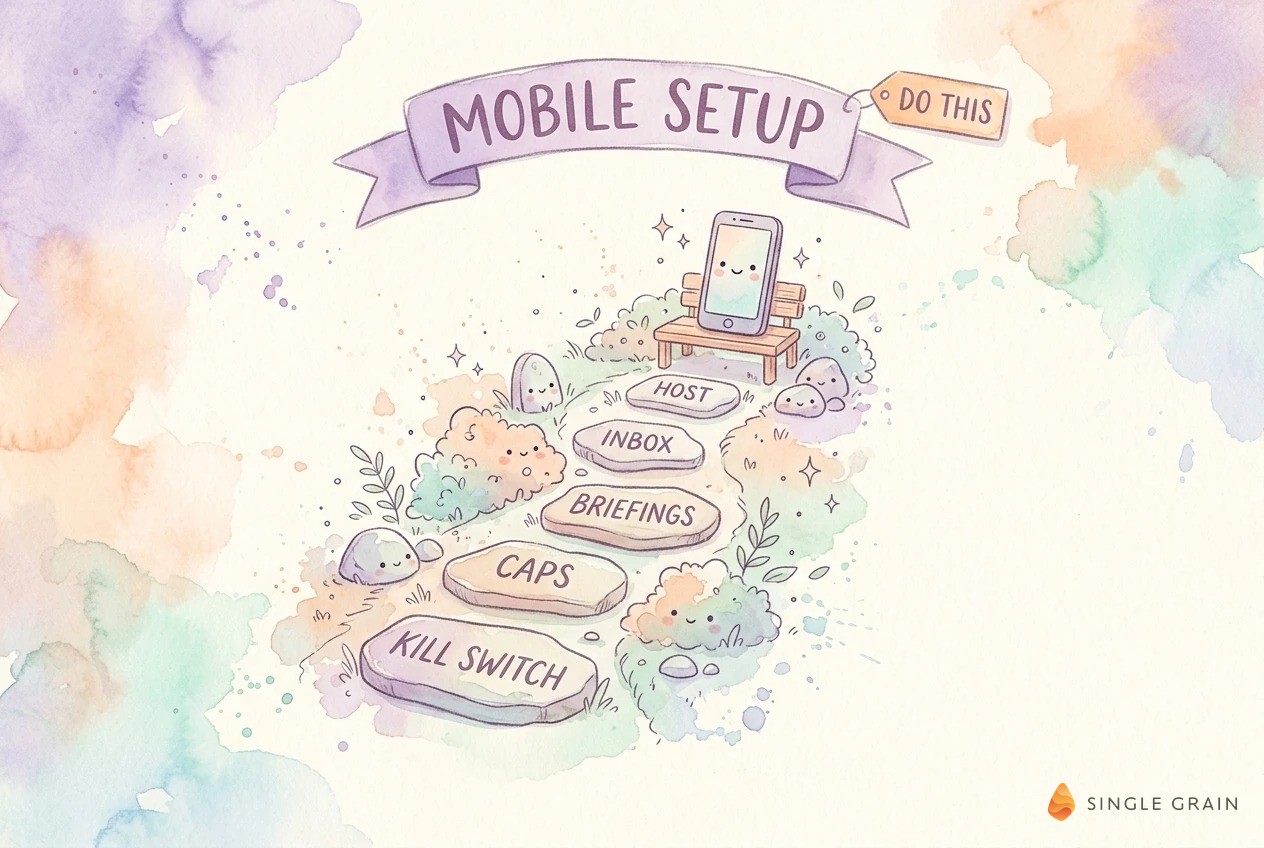
Each step closes a gap people hit on their first week away from the desk. Shared memory helps too, since agents that read the same notes need fewer questions answered. My guide to GBrain and Obsidian shows how to give every agent one shared brain.
Pick a Host Based on the Job
Local sessions suit work tied to files on your computer. Cloud sessions suit work that should finish while your laptop sleeps. Many teams use both, and my comparison of Hermes Agent vs OpenClaw shows how I split jobs across two agent setups.
Once setup is done, the last step is making sure nothing goes wrong while you’re away.
Mobile Guardrails for Agents You Can’t See
Remote control raises the stakes. You see less context on a phone, and a lost phone can become a back door into your agents.
Lost Phones and Session Access
Protect the phone like a laptop. Use a strong passcode and device encryption, and know how to sign out of agent apps remotely. Anthropic notes that Team and Enterprise plans need an Owner to turn on Remote Control first, which gives admins one place to control access.
Escalation Rules and Weekly Checks
Agents should know when to stop and ask. My post on exception queues for marketing agents covers how to route hard cases to a human. A weekly review, like the one in my guide to monitoring AI agents, catches drift your phone check-ins miss.
| Pay Attention |
|---|
| An approval tapped in a hurry still counts as your approval. If a request touches budget, pricing, or a client, wait until you can read the full context. |
Guardrails like these let you leave the laptop behind without losing sleep.
Leave the Laptop, Keep Control
The tools to manage AI agents from your phone are here, and the culture is catching up fast. Keep approvals, briefings, and stop orders on your phone. Save setup, credentials, and launches for the desk, and set caps before you head out.
If you want a team to help design agent workflows for your marketing, Single Grain offers marketing consulting services and content marketing services.
Frequently Asked Questions About Managing AI Agents From Your Phone
-
Can I manage AI agents from my phone?
Yes. Tools like Claude Code Remote Control, the Claude app’s Code tab, and agent control planes such as T3 Code let you approve, steer, and stop agents from a phone. The agent keeps running on a computer or in the cloud, and the phone sends your decisions.
-
Does my computer need to stay on when I control agents from my phone?
It depends on where the agent runs. A local session, such as Claude Code Remote Control, needs your computer on and the session running. A cloud session keeps going after you close your laptop.
-
What should I approve from my phone?
Short, clear decisions fit a phone best: draft approvals, quick redirects, stop orders, and replies to daily briefings. See AI agent guardrails for how to split read, draft, and send permissions.
-
Is it safe to manage AI agents remotely?
It can be, with guardrails. Use a strong passcode, cap spend and outbound sends, route hard cases to an exception queue, and run a weekly review like the one in this guide to monitoring AI agents.
-
Which work should stay at the desk?
Keep new agent setup, credential changes, tool connections, long document reviews, and client launches at a desk with a full screen.