LinkedIn Ads CRM Integration: 4 Important Checks Before You Connect


Plenty of marketing teams set up a LinkedIn Ads CRM integration in an afternoon, then spend the next quarter wondering why their audiences look so small. The connector usually works fine, so what’s the big deal?
Well… the trouble sits in the data behind it, from messy records and patchy consent to personal emails LinkedIn can’t match. Annoying, I know.
Here’s the good news, though: A few checks before you connect save weeks of cleanup later! You’ll know what data leaves your customer relationship management (CRM) system, whether you’re allowed to share it, and how much of it will actually match.
Below, you’ll find the four checks I’d run first, plus the projects worth saving until the basic connection works.
TL;DR
- Clean the CRM data first. LinkedIn matches on fields like email, name, company, and job title, so fix duplicates and blanks before any sync.
- Confirm consent and legal basis. Make sure your privacy policy covers sharing data with ad platforms, and sync only contacts you’re allowed to use.
- Estimate match rates before you plan. Work emails and complete company data match far better than personal emails and partial records.
- Set access and ownership. Give the integration read-only access where possible, and name one owner for the connection.
What Is a LinkedIn Ads CRM Integration?
A LinkedIn Ads CRM integration connects your CRM with LinkedIn’s advertising tools so data can move between them. The connection can send contact and company lists to LinkedIn for targeting, depending on the setup. It can also bring lead form submissions into your CRM, or share revenue data back with LinkedIn for reporting. If you’re new to the platform itself, start with my guide to LinkedIn Ads campaigns.
Each direction carries different risks. Outbound audiences raise privacy and matching questions. Inbound leads raise field mapping and duplicate questions.
3 Common Connection Types
Most teams use one of these three connections:
- CRM to Business Manager. LinkedIn lets you connect Salesforce, Microsoft Dynamics, or HubSpot to Business Manager, with read-only or view access to specific objects and fields.
- Audience sync. Your CRM or marketing platform pushes contact or company segments to LinkedIn as matched audiences.
- Lead form sync. Submissions from LinkedIn Lead Gen Forms flow into your CRM as new contacts.
This guide focuses on the checks every type shares. Before you connect any of them, start with the data itself.
Check 1: CRM Data Quality
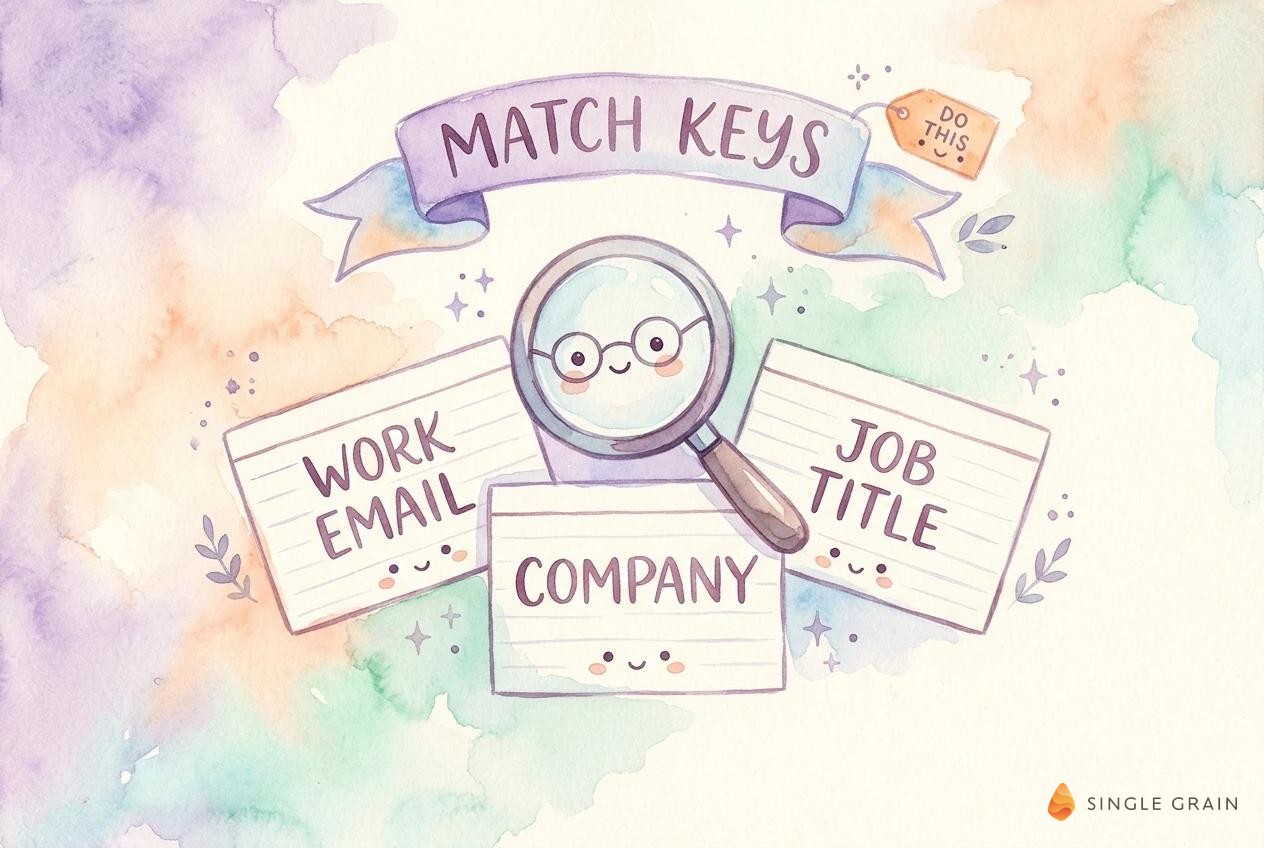
Clean fields drive every match. When HubSpot syncs a contact list audience to LinkedIn, it encrypts and sends email, first name, last name, company name, job title, and country. Blank or outdated values in those fields shrink your audience before a single ad runs.
Fields LinkedIn Uses for Matching
Audit the matching fields on a sample of a few hundred records. Look for blank job titles, company names stored as abbreviations, and countries missing entirely. Fix the patterns at the source, usually a form or an import, so the problem stays fixed.
For company audiences, HubSpot sends fields like company name, website domain, industry, and location. LinkedIn only syncs companies with either a name or a domain, so records missing both never make it.
Duplicates and Stale Records
Duplicates inflate your list counts and confuse reporting once leads start flowing back. Merge duplicate contacts and companies before the first sync. Archive contacts who left their company years ago, since an old work email rarely matches anyone today.
Lead Form Field Mapping
Data flowing in needs the same care. When lead form submissions sync to your CRM, each form field maps to a CRM property, such as job title, company, seniority, or industry. Map every field before launch, and add hidden fields for campaign and form names so sales can see each lead’s source.
Mismatched picklists are the usual culprit here. If LinkedIn sends a seniority value your CRM doesn’t recognize, the field lands blank or the sync fails. Line up the values on both sides first.
A clear data governance policy keeps this cleanup from becoming a one-time project.
Check 2: Consent and Legal Basis
Data quality decides how many contacts match. Consent decides which contacts you’re allowed to send at all. Get this wrong and a targeting project turns into a legal one.
Privacy Policy Disclosure
Your privacy policy should say you share customer data with advertising partners for targeting and measurement. Segments filtered on a legal basis for processing make the safest source for ad audiences. For contacts in regions with strict consent rules, such as the European Union, sync only people with a valid basis on record.
Consent before sharing contact data with third parties is the cleanest standard. For LinkedIn syncs, HubSpot supports an optional consent field, so only contacts who agreed get shared.
Deletion and Opt-Out Requests
People will ask you to delete their data or stop contacting them. Make sure those requests reach your synced audiences too. In HubSpot, permanently deleting a contact removes it from syncing audiences and sends a deletion request to the ad network.
| Action Step |
|---|
| Build one CRM property for ad-sharing consent, add it to every form, and use it as a filter on every audience segment you sync to LinkedIn. |
Consent and clean data together set your ceiling. Match rates show how close you’ll get.
Check 3: Match Rates and Audience Size
Matched audience size is almost always smaller than your CRM count. Ad networks can only match records to people they know, so expect a gap and plan budgets around the matched number.
Work Emails and Personal Emails
LinkedIn members often sign up with personal emails, while business-to-business (B2B) forms collect work emails. Records with both match best. When you only have one, the name, company, and job title fields carry more of the load. Ask for a work email on high-intent forms, like demo requests, and keep the personal email field optional so you collect both over time.
Company Lists for LinkedIn Matched Audiences
Company audiences often match better than contact lists, since company names and domains are public and change less often than job titles. They suit account-based campaigns where you want to reach a buying committee. My guide to LinkedIn Matched Audiences covers how to use them once the sync is live.
| Pro-Tip |
|---|
| Before you connect anything, export a sample list and upload it to Campaign Manager by hand. The match rate on the sample shows whether your data is ready for an automated sync. |
Once you know the likely audience size, the last check covers who controls the connection.
Check 4: Access and Ownership
Integrations run with real permissions. Give the CRM connection read-only or view access wherever the setup allows, and limit write access to the fields it truly needs. Note which user account authorized the connection, since the sync can break if that person leaves.
Plan for audience refresh too. Synced segments update periodically as your CRM changes, so a contact who becomes a customer can leave a prospecting audience without anyone editing the campaign. Build exclusion segments for customers and open deals from day one.
Name one owner for the integration. This person reviews sync errors, approves new audiences, and checks consent filters each quarter. Without a named owner, small sync errors pile up until a campaign underdelivers.
A Quick Pre-Connection Checklist
Run through this list in order before you click connect:
- Sample audit done. A few hundred records checked for blank or outdated matching fields.
- Duplicates merged. Contacts and companies deduplicated in the CRM.
- Consent property live. One ad-sharing consent field on every form and every synced segment.
- Privacy policy updated. Sharing with advertising partners disclosed in plain language.
- Sample match tested. A manual upload shows a usable match rate.
- Owner named. One person owns the connection, its errors, and its permissions.
Once each box is checked, the connection itself takes very little time. The bigger projects can wait until the data proves itself.
Attribution and Offline Conversions for Later
Once the connection is stable, you can add more advanced projects. Revenue attribution, conversion tracking, and value-based bidding all sit on top of a clean CRM link. Teams who start them before the basics work usually end up rebuilding.
When you’re ready, my guide to LinkedIn ABM attribution in HubSpot shows how to tie ads to pipeline. Synced audiences also power smarter retargeting, like the multi-stage LinkedIn retargeting approach for longer sales cycles.
Connect LinkedIn Ads to Your CRM With Confidence
A LinkedIn Ads CRM integration pays off when the data behind it is clean, consented, and matchable. Audit the matching fields, confirm your legal basis, test a sample upload, and assign an owner. Then connect, and add attribution once the basics hold.
If you want help planning LinkedIn campaigns built on clean CRM data, the Single Grain team can help through our LinkedIn Ads services and marketing consulting services.
Frequently Asked Questions About LinkedIn Ads CRM Integration
-
What data does a LinkedIn Ads CRM integration send?
It depends on the connection. For a HubSpot contact list audience, HubSpot encrypts and sends email, first name, last name, company name, job title, and country. Company audiences send fields like company name, domain, industry, and location.
-
Which CRMs connect to LinkedIn Ads?
LinkedIn lets you connect Salesforce, Microsoft Dynamics, or HubSpot to Business Manager. Many marketing platforms, including HubSpot, can also sync contact and company audiences to LinkedIn directly.
-
Do I need consent to sync CRM contacts to LinkedIn?
Your privacy policy should disclose sharing data with advertising partners, and contacts in strict-consent regions need a valid legal basis. LinkedIn recommends getting consent before sharing contact data with third parties, and HubSpot supports an optional consent field for this.
-
Why is my LinkedIn matched audience so small?
LinkedIn can only match records to its own members. Personal emails, blank job titles, and outdated companies all lower the match rate. Test a sample upload first, then clean the fields with the most gaps. See LinkedIn Matched Audiences for how to use them.
-
Should I set up attribution when I connect my CRM to LinkedIn Ads?
Get the basic connection clean first. Attribution and conversion tracking depend on accurate CRM data, so add them once audiences and lead syncs run without errors. See LinkedIn ABM attribution in HubSpot.