Google Ads All Conversions Tab Explained for Smarter Audits


Are your bids chasing real buyers or easy actions? Your Google Ads all conversions column can look healthy while sales rejects most of the leads behind it!
I ran into this gap from the other direction. My team connected a Meta campaign to HubSpot so each lead could be traced to a sales-qualified outcome, and the qualification step left a Slack brief, a call, and a transcript in the CRM. Google Ads needs the same trail before its totals mean anything.
This guide gives you an audit sheet showing what each action counts, where it influences bidding, and which qualification questions are still open.
TL;DR
- Open the action settings beside the campaign goals. Record which actions each campaign can use for bidding.
- Segment All conv. by conversion action. Identify the recorded outcomes behind the total before calling them leads.
- Inspect custom goals before changing an action to secondary. A secondary action included in a selected custom goal can still affect bidding.
- Ask sales for the acceptance rule. Link the CRM evidence to the action and assign an owner to unresolved mappings.
TABLE OF CONTENTS:
- What Is the Google Ads All Conversions Tab?
- All Conversions Tab vs. the All Conv. Column
- How Google Ads Conversion Goals Affect Bidding
- Build a Google Ads Conversion Audit Sheet
- What a HubSpot-Connected Campaign Shows About Qualified Leads
- Trace the Sales Qualification Artifacts
- Review Counting, Windows, and Inactive Actions
- Keep the Report Readable After Changes
- Make the Conversion Decision Reviewable
What Is the Google Ads All Conversions Tab?
The All conversions tab lists every conversion action your Google Ads account records, along with the settings that decide whether each action counts toward bidding. Open Goals and Conversions to find it. Keep the campaign report in another window; you’ll need its action breakdown when you reconcile the totals.
Can’t find the tab? A Search Engine Roundtable report described the submenu appearing in accounts but left the full rollout date uncertain. Google’s instructions for editing primary and secondary actions use Summary under Conversions in Goals. Open the relevant goal there to reach its actions.
Copy the exact action name and source before you judge the label. An old action can carry a current-sounding name. I want its settings on screen when a reviewer asks why a familiar conversion appears in the report.
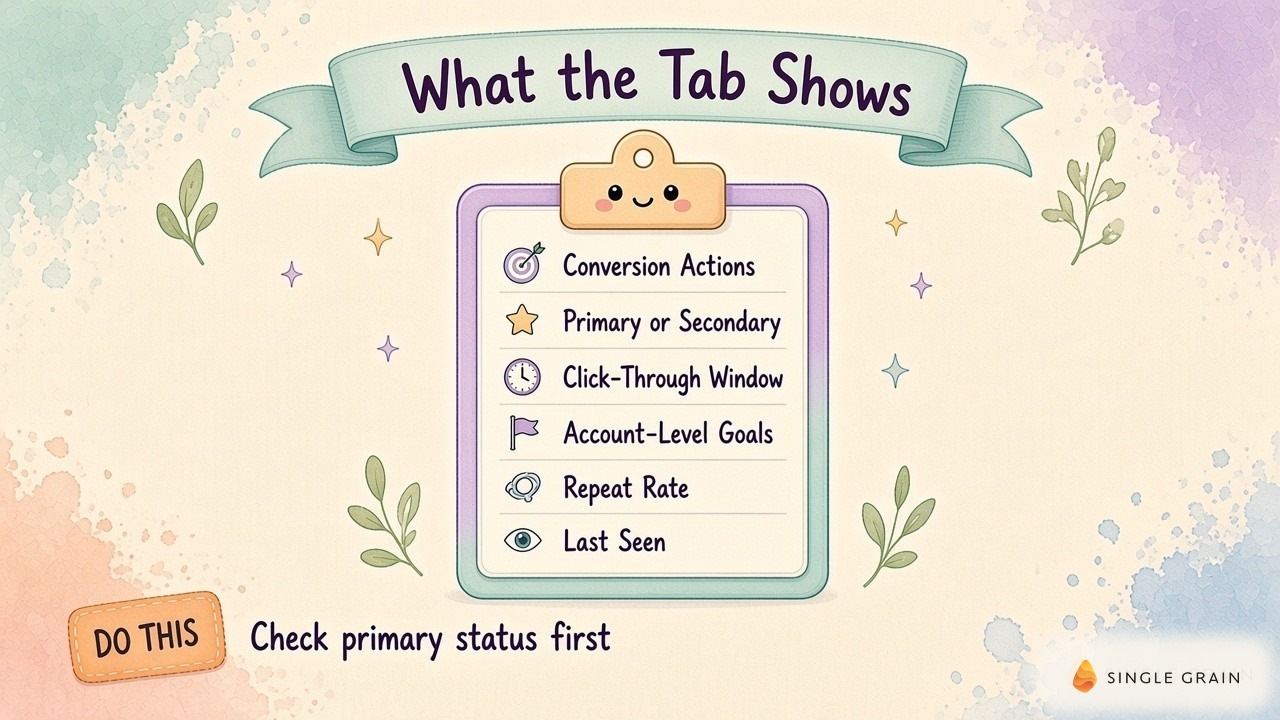
Leave the action list open. The next question comes from the gap between the reporting columns.
All Conversions Tab vs. the All Conv. Column
Why does All conv. show more activity than Conversions? Segment the report before explaining the difference to anyone. Otherwise, you’re asking a single total to describe several recorded outcomes.
Read All Conv. by Conversion Action
Add Conversions and All conv. to the campaign report. Freeze the date range, then segment by conversion action. Trace the rows contributing to the gap and write down what each counts. Use the same dates in every export or screenshot you attach to the audit.
Google’s All conversions documentation includes the Conversions count plus additional sources and actions excluded from it. Secondary actions and view-through conversions can contribute to the larger total. If several funnel stages appear, you still need to work out how many sales opportunities the activity represents.
Inspect the Conversions Column Before Comparing CPA
Pause a CPA comparison if the conversion definition changed between reports. Google’s conversion reporting guide calculates Cost / conv. using the Conversions count. Changing the actions included through campaign goals changes the count behind the calculation.
If you move from submitted forms to qualified leads, put the new definition beside the CPA. Check the smaller conversion total against accepted leads and sales results. Keep the prior breakdown available so the reviewer can see exactly which outcomes disappeared from the denominator.
The report shows the credited activity. To explain why an action influences bidding, open the campaign’s goal selection.
How Google Ads Conversion Goals Affect Bidding
Check the campaign before editing the action. Google groups related actions into conversion goals. Under standard goals, a primary action participates in bidding when the campaign optimizes toward its associated goal. The primary label leaves the campaign’s selection to verify.
Check the Custom-Goal Exception
Changing an action to secondary can leave its bidding influence intact. Secondary actions generally serve observation in standard goals. Inside a custom goal selected by a campaign, however, a secondary action participates in bidding.
Record whether the campaign uses account-default goals or a campaign-specific selection. Open each selected custom goal and inspect the included actions. Save the goal name beside the action name, with the optimization setting visible. A reviewer should be able to retrace the selection without asking you to explain it from memory.
| Pro-Tip |
|---|
| Before signing off on an observation-only change, compare the campaign’s selected goals with the action’s optimization setting. If a selected custom goal still contains the action, flag the unresolved bidding use in your notes. |
Copy the evidence into the audit sheet while you have the settings open.
Build a Google Ads Conversion Audit Sheet
Reserve a row for each conversion action. Use its exact name and source, then record the optimization setting and campaigns using its goal. Add Business outcome, CRM evidence, Proposed change, and Owner columns.
Start writing in Business outcome. “Submitted form” describes an earlier event than “sales accepted lead.” If you can’t say which event the action represents, leave Proposed change pending and assign the mapping to an owner. A polished action name won’t answer the qualification question.
In CRM evidence, attach an accessible record or approved report supporting the definition. Keep personal contact details out of broadly shared copies. The point is to let the reviewer inspect the acceptance rule and its recorded outcome.
Check Similar Actions for Duplicates
Treat similar action names as duplicate candidates until you’ve followed the implementation. A Google tag and a Google Analytics import may both record the same form submission. Check their triggers and event destinations before retiring either action or changing bidding inclusion.
Use the conversion tracking troubleshooting and setup guide for a trigger or destination requiring repair. If the investigation spreads into campaign structure, open the Google Ads audit template. Keep the conversion sheet beside it so implementation questions don’t bury the unresolved outcome definition.
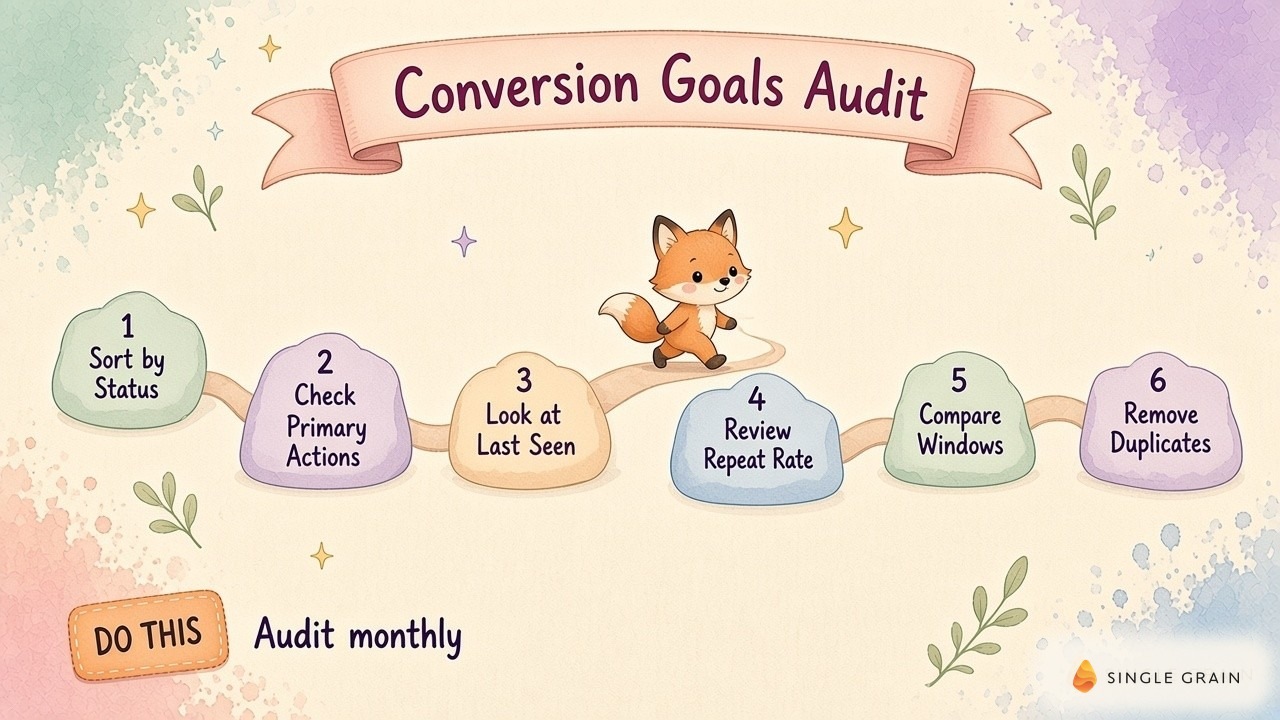
Here’s where my own acquisition workflow becomes useful. It gives the CRM evidence column a specific outcome to investigate.
What a HubSpot-Connected Campaign Shows About Qualified Leads
In my November 2026 Media OS walkthrough, I showed the Meta campaign my team connected to HubSpot from the start. It sent prospects toward AI visibility reports and citation maps.
We followed the campaign through to sales-qualified leads in HubSpot. A paid search reviewer can use this sequence to ask where the campaign’s recorded response reaches a sales outcome.

Document the Qualified-Lead Definition
For your audit, ask the qualification owner to open the CRM evidence behind the proposed outcome. Check the stage and its entry rule. Write the documented acceptance definition in Business outcome, then attach the supporting record. You now have a definition the campaign reviewer can examine before considering a qualified-lead action for bidding.
It’s also worth asking how consistently the CRM receives updates. If stage changes arrive inconsistently, investigate the handoff before relying on the imported signal. The word “qualified” in an action name doesn’t prove the underlying updates arrive dependably.
The Meta example ends at the reported sales-qualified outcome. My qualification workflow includes more records along the way.
Trace the Sales Qualification Artifacts
In my October 2026 lead-qualification workflow demonstration, I walked through screening leads for vendor spam and geographic fit. The workflow produces a Slack brief, uses Twilio for calls, and logs the call and transcript in HubSpot. These are concrete artifacts a sales reviewer can examine.
The sales team’s role appears at the warm transfer after qualification. For your audit, this is a useful place to ask who accepts a lead and which record preserves the decision. A call transcript can help investigate qualification without assuming every completed form represents sales intent.
Compare Accepted and Rejected CRM Records
My demonstration doesn’t show an offline Google Ads import. I would separately verify whether your accepted-lead outcome reaches Google Ads, which action receives it, and whether the import succeeds. Keep the evidence for qualification separate from the evidence for delivery into the ad account.
Bring the salesperson responsible for acceptance into the review of your Business outcome column. Ask for an actual accepted record and an actual rejected record, with sensitive details handled appropriately. Use the documented difference to refine the definition, rather than inventing a qualification score for the article.
With the outcome mapped, you can inspect the measurement settings without guessing what a conversion should represent.
Review Counting, Windows, and Inactive Actions
Would repeated submissions from the same prospect count as additional business value? Answer before choosing Count for a lead action. Google’s conversion counting options distinguish counting one conversion per ad click from counting every conversion after an interaction.
Inspect the Count setting inside the action. If a repeat-rate column looks suspicious, follow the event through the form and into the CRM. The column can prompt an investigation, but you still need the records to confirm whether the same prospect created duplicates.
Match Conversion Windows to Sales Delays
Next, compare the click-through conversion window with the delay between an ad interaction and the recorded outcome. Google’s conversion-window guidance defines the elapsed period eligible for recording. Check form submissions and later sales outcomes separately before applying a common window.
Investigate Inactive Conversion Actions
For an action with no recent activity, test the customer path and inspect tag or import diagnostics. Find out whether the landing page was retired or an active form broke. Preserve the action’s history while you investigate; the next decision depends on why recording stopped.
Keep small funnel events available when they help investigate landing-page behavior. The GA4 micro-conversion tracking guide can help you assess their diagnostic use. Document any bidding use in the action’s row before you close the measurement review.
Keep the Report Readable After Changes
In my October 2026 marketing stack walkthrough, I showed an ad spend watch bot and a paid media report desk among my available workflows. Automated reporting makes the meaning of its inputs especially relevant. The same conversion label needs a clear definition wherever the report appears.
Save the pre-change action breakdown and note the date and reason for each edit. Keep unrelated budget or creative experiments out of the same evaluation where practical. This makes it easier to explain whether a reporting change came from a new outcome definition or a shift in acquisition performance.
Time the Review to the Conversion Cycle
Google’s conversion measurement guide advises allowing one to two conversion cycles for adaptation after a significant change in the conversion behavior used by Smart Bidding. Schedule your evaluation around the outcome’s actual delay. Don’t judge a qualified-lead change using fresh submissions before sales has reviewed them.
For Performance Max accounts, pair this review with the Performance Max playbook to assess the campaign controls involved. The audit is ready for review when an owner can explain each action’s business meaning and its campaign use. Carry unresolved mappings forward with a named owner and a specific diagnostic task.
Make the Conversion Decision Reviewable
When my team traced a Meta campaign into HubSpot, the record worth trusting was the sales-qualified lead and the call transcript behind it. Bring the same evidence to Google Ads. Keep the action sheet beside the campaign’s goal settings and CRM records, and write one sentence for each proposed change naming the sales outcome it protects.
For help reviewing your conversion setup and paid search strategy, explore Single Grain’s PPC services or contact Single Grain.
Frequently Asked Questions About the Google Ads All Conversions Tab
-
Where is the All conversions tab in Google Ads?
It’s a submenu under the Goals section. It shows every conversion action and its settings without clicking View all conversion actions.
-
Is the All conversions tab the same as the All conv. column?
No. The All conv. column is a reporting metric that includes secondary actions and cross-device data. The tab is a management view of your conversion actions.
-
What's the difference between primary and secondary conversion actions?
Primary actions appear in the Conversions column and are used for bidding. Secondary actions are tracked for reporting only.
-
How do I change a conversion goal for a campaign?
Open the campaign settings and edit its goals, or set account-default goals so they apply across campaigns.
-
How often should I audit Google Ads conversion goals?
A monthly check works for most teams, plus a review any time you add new tags, forms, or GA4 imports.